Underwatermelon: Fruit Merge - Game Support

Underwatermelon: Fruit Merge

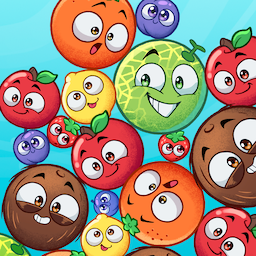
Match cute, colorful fruits to create combos and merge until you get melons. See how high your score can float in this relaxing, undersea puzzle game.

Download on your mobile device

Platforms: Android phone and tablet, iPhone and iPad, TV, computer browsers

Game category: Arcade

Number of players: 1-2

Offline play: No

Cloud saves: Yes

Content rating: See the game's app store page

Languages: English (US), French, German, Italian, Japanese, Korean, Chinese (Traditional), Polish, Portuguese (Brazil), Spanish (Spain), Spanish (Latin America), Turkish, Swedish, Finnish, Dutch.

Developer: Next Games

Requirements

To play Underwatermelon: Fruit Merge on mobile, you’ll have to install the game on your device first. You need:

  • A compatible device:

    • Android phone or tablet running Android 9.0 or later

    • iPhone with iOS 17 or later

    • iPad with iPadOS 17 or later

  • An active Netflix subscription

  • Stable internet connection (wifi or mobile data)

  • Enough storage space on your device


Installation

From the Netflix app

The Netflix app includes a Mobile Games row on the home screen and a Games tab at the bottom.

  1. From the home screen in the app, swipe down to find the Mobile Games row, or tap the Games tab.

    Note:Not seeing the Mobile Games row or Games tab? Make sure you have the latest Netflix app version. See How to update the Netflix app on your Android device.

  2. Tap on the game, and tap Get Game. The Play Store will open.

  3. Tap Install.

    • Depending on the game and your device settings, a Permissions screen may appear. Choose Accept.

  4. The game will download and install. When complete, choose Open.

    • After a game is installed, you can open it from the Mobile Games row or Games tab in the Netflix app. You can also tap its icon on your device's home screen or in the app drawer.

  5. The game will launch. Tap the Profile icon in the game if you'd like to change to a different profile and start playing!


From the Play Store

You can also search for a game in the Google Play Store.

  1. Open the Play Store and search for the game by name or see all available Netflix games.

  2. Select the game from the search results, and tap Install.

    • Depending on the game and your device settings, a Permissions screen may appear. Choose Accept.

  3. The game will download and install. When complete, choose Open.

    • After a game is installed, you can open it from the Mobile Games row or Games tab in the Netflix app. You can also tap its icon on your device's home screen or in the app drawer.

  4. If prompted, tap Continue and then sign in using the email address and the password of your Netflix account

  5. Choose your Netflix profile and start playing!


Netflix games aren't available in Kids profiles. A game may not appear for a profile if the profile’s maturity setting is set below the maturity rating of the game, or if your device isn't compatible with the game.

From the Netflix app

The Netflix app includes a Mobile Games row on the home screen.

  1. From the home screen in the app, swipe down to find the Mobile Games row.

    Note:Not seeing the Mobile Games row? Make sure you have the latest Netflix app version. See How to update the Netflix app on iPhone, iPad, or iPod touch.

  2. Tap on the game, and then tap Get Game or Play Game.

  3. Tap Get or the Cloud icon on the App Store banner.

  4. The game will download and install. When complete, tap Open.

    • After a game is installed, you can open it from the Mobile Games row in the Netflix app, or by tapping its icon on your device's home screen.

  5. The game will launch. Tap the Profile icon in the game if you'd like to change to a different profile and start playing!


From the App Store

You can also search for a game in the App Store.

  1. Open the App Store and search for the game by name or see all available Netflix games.

  2. Select the game from the search results, and tap Get or the Cloud icon.

  3. The game will download and install. When complete, tap Open.

    • After a game is installed, you can open it from the Mobile Games row in the Netflix app, or by tapping its icon on your device's home screen.

  4. If prompted to log in, tap Next and then enter your Netflix account email address and password. Select Log in.

  5. Choose your Netflix profile and start playing!


Netflix games aren't available in Kids profiles. A game may not appear for a profile if the profile’s maturity setting is set below the maturity rating of the game, or if your device isn't compatible with the game.

You can also play Underwatermelon: Fruit Merge on Netflix using your browser or TV.

Play on your TV using your Netflix account:

  • To start the game, open Netflix on your TV and navigate to the Games row or select Games from the main Netflix menu. If you cannot find the Games row on Netflix, your device may not be supported. See "Required setup" on Play games on Netflix for details.

  • This option allows you to play solo or team up with a friend for some extra fun.

  • For TVs, your mobile device is required as the game controller, so you’ll need to pair it via the QR code when launching the game. If it’s your first time playing games on TV, you may be prompted to install the Netflix mobile app for Android or the Netflix Game Controller app for iOS.

Play in your computer browser on Netflix.com:

  • Using your web browser on a computer, open Netflix.com and navigate to the Games row or select Games from the main Netflix menu on your PC.

  • When playing directly on a computer, you can pair up to two controllers. One player can also use a mouse or the keyboard’s arrow keys to play. Other controllers aren’t supported at this time. At least one of the players will require an active Netflix membership.

  • Find Underwatermelon: Fruit Merge and select Play. To pair a controller on a PC, press Shift + Tab on your keyboard to open the Netflix menu, select Controllers, and scan the QR code with your device.

Answers to common questions can be found here.

For Underwatermelon: Fruit Merge - specific questions or player support, see here.

Having a problem with the game? Here are fixes to try for common problems.

If you leave the game running in the background for several hours, you may see error 0x00. Restarting the app should fix this. We recommend not leaving the game in the background for long periods.

If your game stops working, won't respond, or closes suddenly:

If your game doesn't perform well, lags, or visually skips or stutters:

If you get one of these errors, go to the matching article below for steps that fix the problem.

If you get a different error message or code, you can contact us to let us know there's a problem.

Not finding what you're looking for? Check our Netflix Games article. You can also always contact us.

Related Articles